Move one sample hit without moving the phrase ends
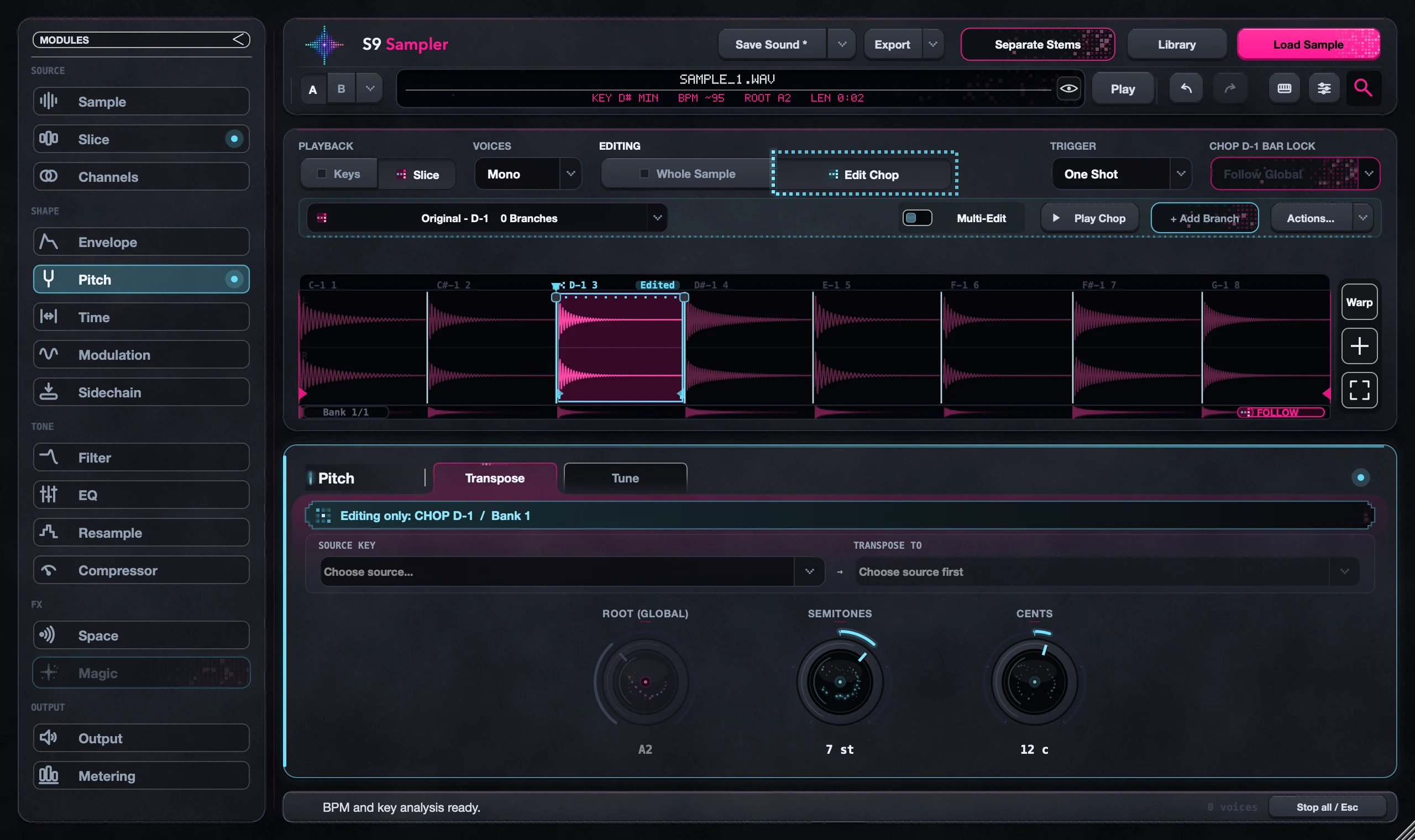
Warp moves timing inside a sound while its start and end stay put. In Keys it works on the whole sample, including an Instrumentized sound; in Slice it works on the selected Chop. Add a point on the hit and drag it earlier or later.
Use it when the length is right but one hit is off. Moving a cut changes where a Chop starts; Warp moves what happens inside it.
For S9 Sampler 0.1.6 (paid beta). More help inside the app: Help & Shortcuts → Warp & timing.
Step by step
Pick the target
Choose Keys for the whole sound or Slice for one Chop. Then open Warp on the waveform.
Add a point
Choose Add Point, click the hit and drag its handle earlier or later. Small moves first.
Snap if it helps
Choose transient or beat snapping. Remove deletes the selected point. Warp Off bypasses your edits without erasing them.
Play a fresh note
Moving a point doesn’t start playback, so play a new note to hear it. Done keeps your edits.
Good to know
Trust your ears
A perfectly lined-up grid isn’t always the best groove. Keep a hit early or late if it feels right.
Keys and Slice are separate
They keep their own Warp edits. Switching mode doesn’t copy them.
7 days, all features, no card, no automatic charge.