Place and join sample cuts by hand
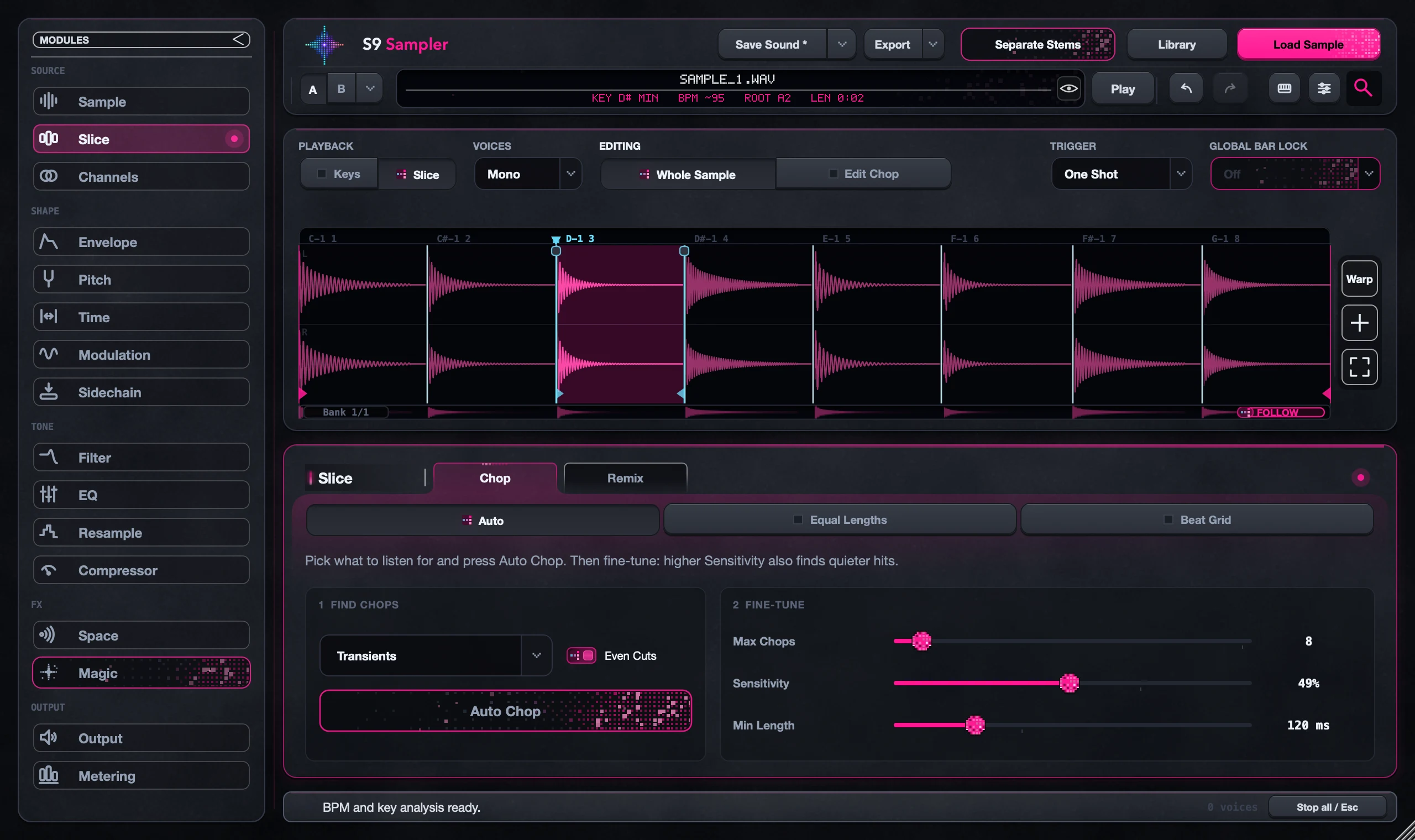
Double-click the waveform to add a cut. Drag its upper handle to move it. To join two Chops, double-click the cut between them or click its floating X. Joining keeps all the audio; it only removes the cut.
Useful when Auto Chop gets close but a phrase needs a cut in a particular musical spot. Zoom in when cuts are close together, then zoom out and listen.
For S9 Sampler 0.1.6 (paid beta). More help inside the app: Help & Shortcuts → Waveform & cuts.
Step by step
Zoom and move around
Use the wheel or pinch to zoom and Shift-wheel to scroll, or drag the overview. Expand gives the waveform more room.
Add a cut
Double-click where you want it. Play both new Chops and nudge the cut if needed.
Move or join
Drag the upper handle to move a cut. Double-click it, or click its X, to join the two Chops.
Delete only on purpose
Delete Chop and Audio removes that section and closes the gap. Use Undo if you meant to join instead.
Good to know
Check Key Map after big changes
Adding or joining Chops can change which key plays what. Open Key Map before you carry on with a MIDI pattern.
Previews have their own Undo
An Auto Chop preview and the main waveform keep separate Undo history.
7 days, all features, no card, no automatic charge.