Fit a sample or Chop to an exact number of bars
Turn on Bar Lock and choose how many bars the sound should last. It fits the playback to that length at your DAW’s tempo and keeps the pitch you’ve set. Each Chop can follow the Global length, stay Free or use its own length.
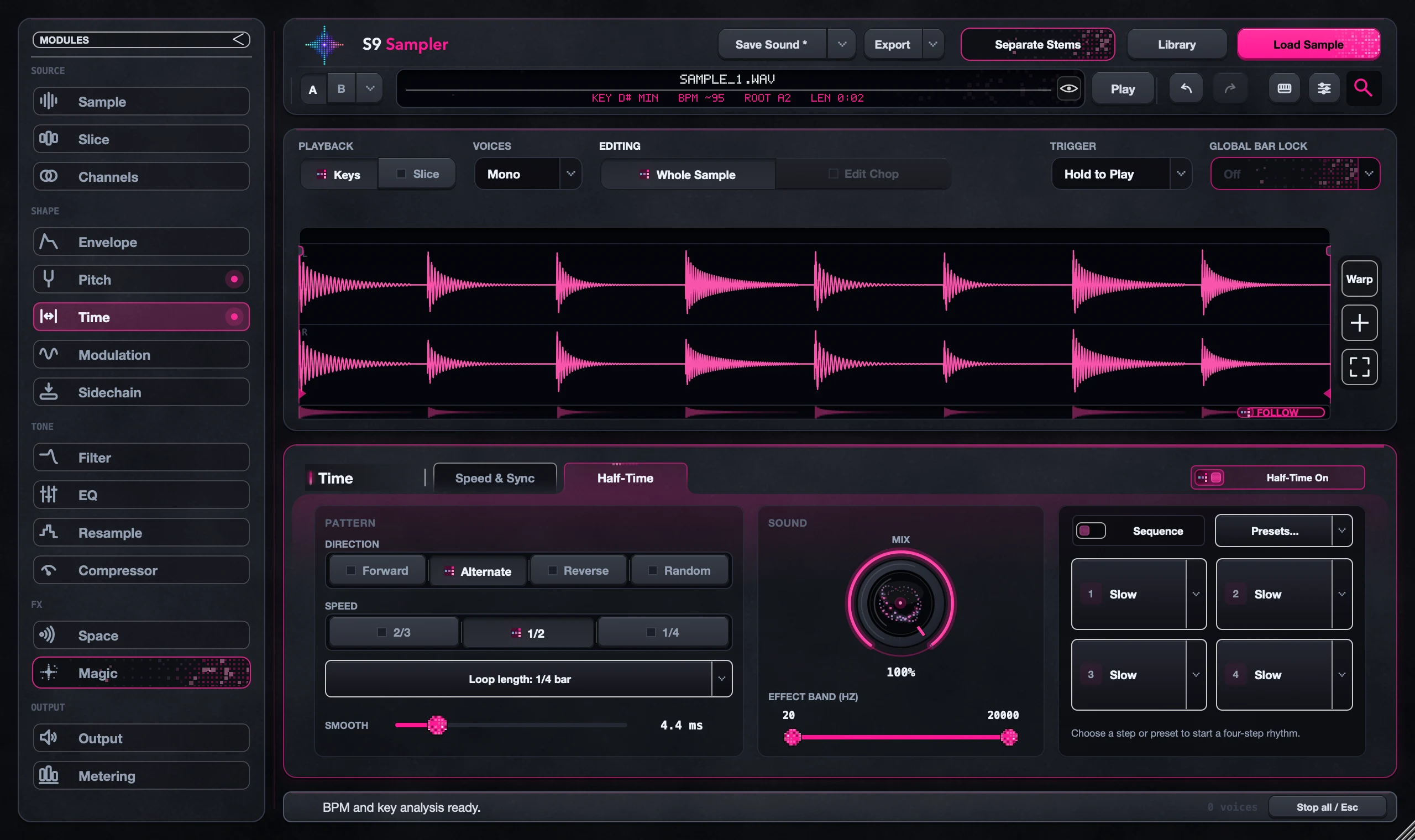
Use it when a phrase has to fill a section exactly. Warp moves hits inside a fixed length, and Half-Time changes the rhythm inside the length.
For S9 Sampler 0.1.6 (paid beta). More help inside the app: Help & Shortcuts → Pitch & Time.
Step by step
Choose what to fit
Use Whole Sample for the whole sound, or select a Chop and choose Edit Chop.
Set the bars
Turn on Bar Lock and choose the number of bars. Bars follow your DAW’s tempo and time signature.
Check each Chop
A Chop can follow Global, stay Free or have its own length. That explains a Chop that ignores a shared change.
Play it at tempo
Play a fresh note with your song and check where the phrase ends.
Good to know
One hit is early or late?
If the length is right but one hit is off, use Warp to move just that hit.
Bar Lock owns the length
While it is on, speed controls don’t change the length. Turn Bar Lock off if you want free timing.
7 days, all features, no card, no automatic charge.