Root note vs musical key vs Key Map in S9 Sampler
Root is the key that plays your sample at its original pitch in Keys mode. The musical Key describes the recording, such as C minor. Key Map shows which key plays each Chop in Slice. A C minor sample doesn’t always play at its original pitch on C.
This clears up the usual confusion: a sound seems transposed, a controller plays the wrong Chop, or the octave numbers differ between your DAW and S9.
For S9 Sampler 0.1.6 (paid beta). More help inside the app: Help & Shortcuts → Keys & Key Map.
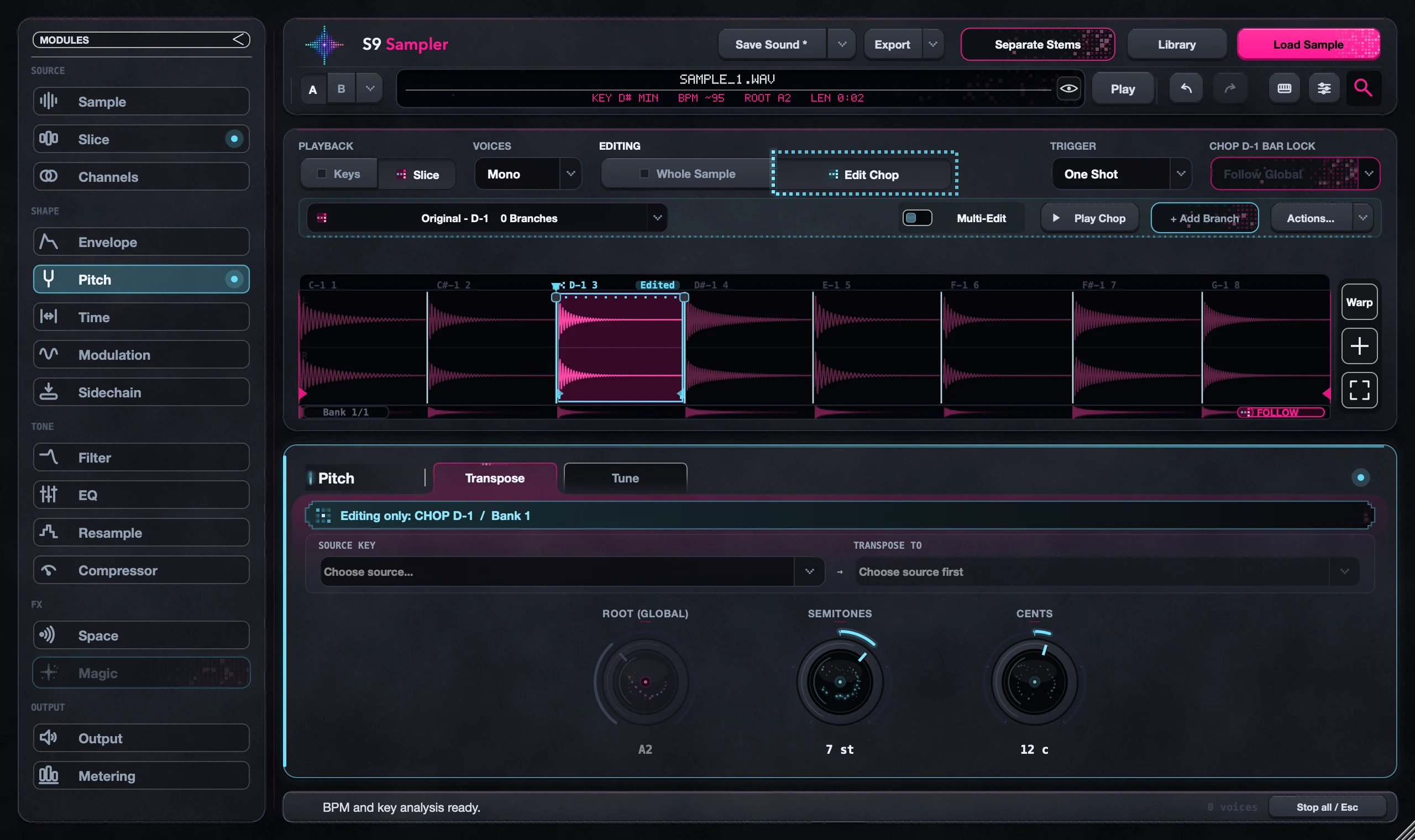
Step by step
Pick the mode
Keys plays one sound across the keyboard. Slice gives each Chop a key.
Find Root in Keys
Play the Root note shown at the top, including its octave. Pitch, Tune and Time can still change what you hear there.
Read Key as a guide
The detected musical Key tells you about the audio. Confirm it by ear, especially on short or busy samples.
Open Key Map in Slice
Click the keyboard icon to see which key plays each Chop. Check the bank if you have a long sample.
Good to know
Octave numbers differ
DAWs and controllers name octaves differently. Trust the Key Map and your ears over the label.
A key isn’t a note
A busy recording holds many pitches. Its detected key can’t turn every Chop into a clean, single note.
7 days, all features, no card, no automatic charge.