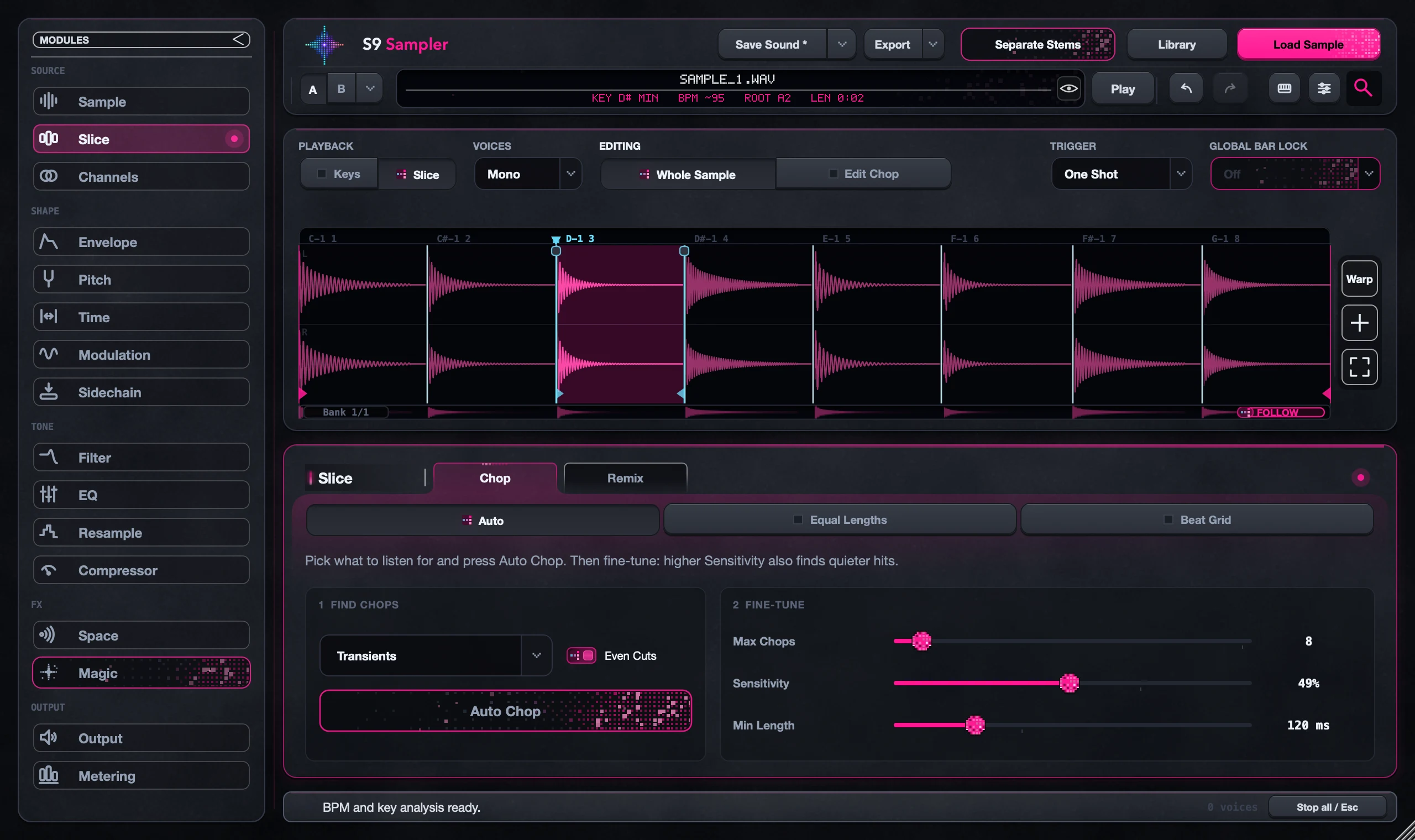
Keys or Slice: choose how your sample plays
Keys plays the whole sample at different pitches, like an instrument. Slice gives each Chop its own MIDI key, so you can play the pieces of a recording. Pick the one that matches what you want your keyboard to do.
A single held note works well in Keys. A vocal phrase cut into words works well in Slice. Switching modes doesn’t change your audio or your edits, so try both on the same sample.
For S9 Sampler 0.1.6 (paid beta). More help inside the app: Help & Shortcuts → Start here.
Step by step
Load one clear sound
Decide whether you want the whole sound on every key, or a different piece on each key.
Try Keys
Choose Keys and play the Root note shown at the top, including its octave. Then play nearby keys to hear the sound at other pitches.
Try Slice
Choose Slice and open Key Map to see which key plays each Chop. Long samples can spread across several banks.
Choose what to edit
Whole Sample edits the shared sound; Edit Chop edits the selected Chop. That is a separate choice from Keys or Slice.
Good to know
Hear the difference fast
Use a recording with two clearly different parts. In Keys, every key plays the whole thing; in Slice, each key plays its own part.
Keys is not the musical key
The musical Key describes the recording. Root is the MIDI note that plays it at its original pitch in Keys.
7 days, all features, no card, no automatic charge.