S9 Sampler opens but makes no sound: what to check
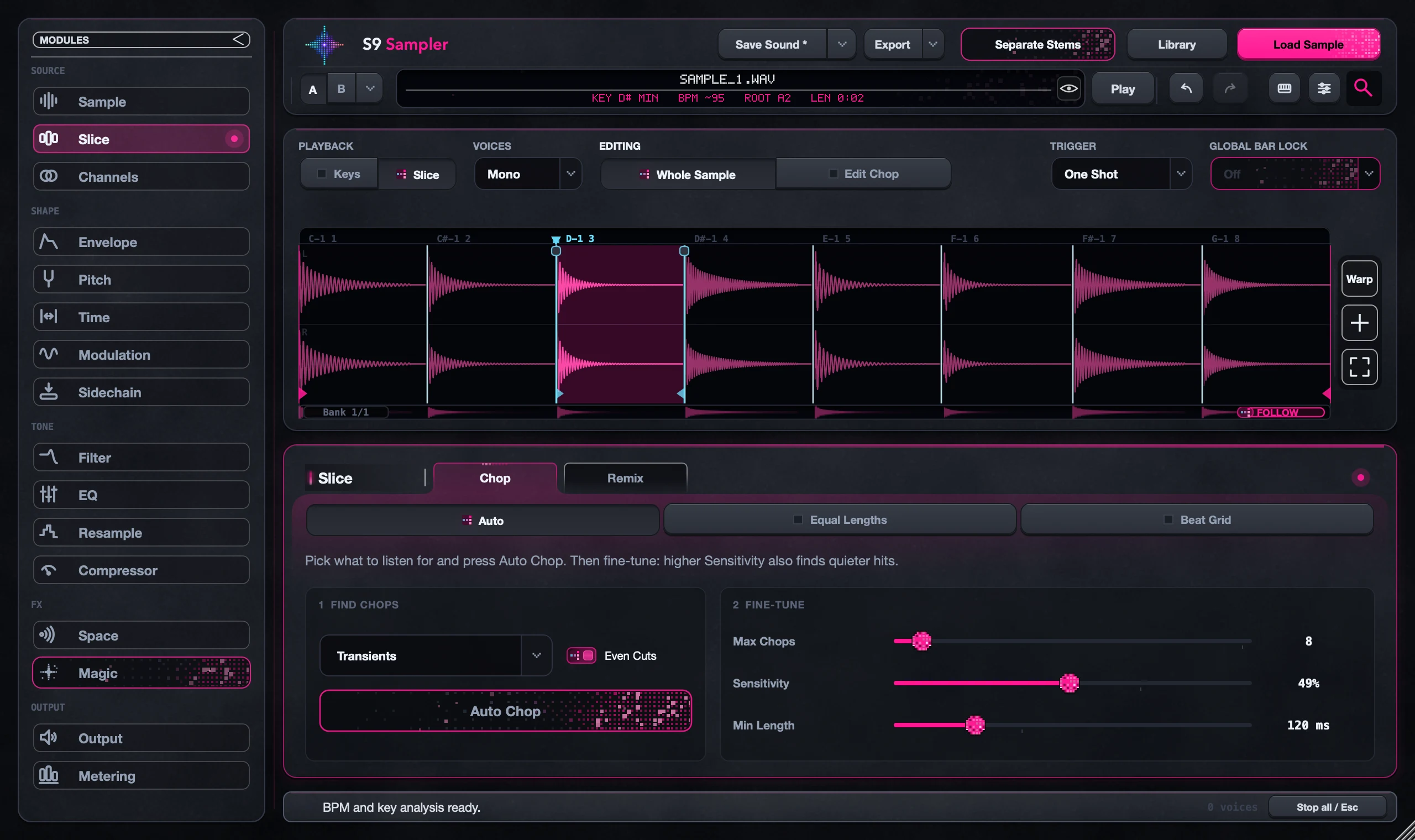
Check four things: a sample is loaded, MIDI reaches the S9 Sampler track, you’ve picked Keys or Slice, and you’re playing a key that mode uses. Seeing the plug-in window doesn’t mean your DAW is sending it notes or routing its sound to your speakers.
Test with a short sound you know is audible and change one thing at a time. That quickly tells a routing problem apart from a silent file, a key outside the current bank or a note that stops when you let go.
For S9 Sampler 0.1.6 (paid beta). More help inside the app: Help & Shortcuts → Start here.
Step by step
Load a sound you can hear
Load a short file you know plays fine elsewhere. If the waveform stays empty, fix the load first.
Check the track
Use an instrument track so MIDI reaches S9 Sampler, with its output going to your speakers. Arm or monitor the track if your DAW needs that.
Play the right key
In Keys, play the Root note shown at the top, including its octave. In Slice, open Key Map and play a key that has a Chop in the current bank.
Check how notes stop
One Shot plays through after a tap; Hold to Play stops when you let go. Also check that the playable range or envelope hasn’t made the sound silent.
Good to know
Only some Chops are silent?
Check those Chops’ own settings and which MIDI bank is selected before you reset the whole sound.
Still silent?
Use Send Feedback with your S9 version, operating system, DAW and version, playback mode and the key you played. Say what you expected to hear.
7 days, all features, no card, no automatic charge.