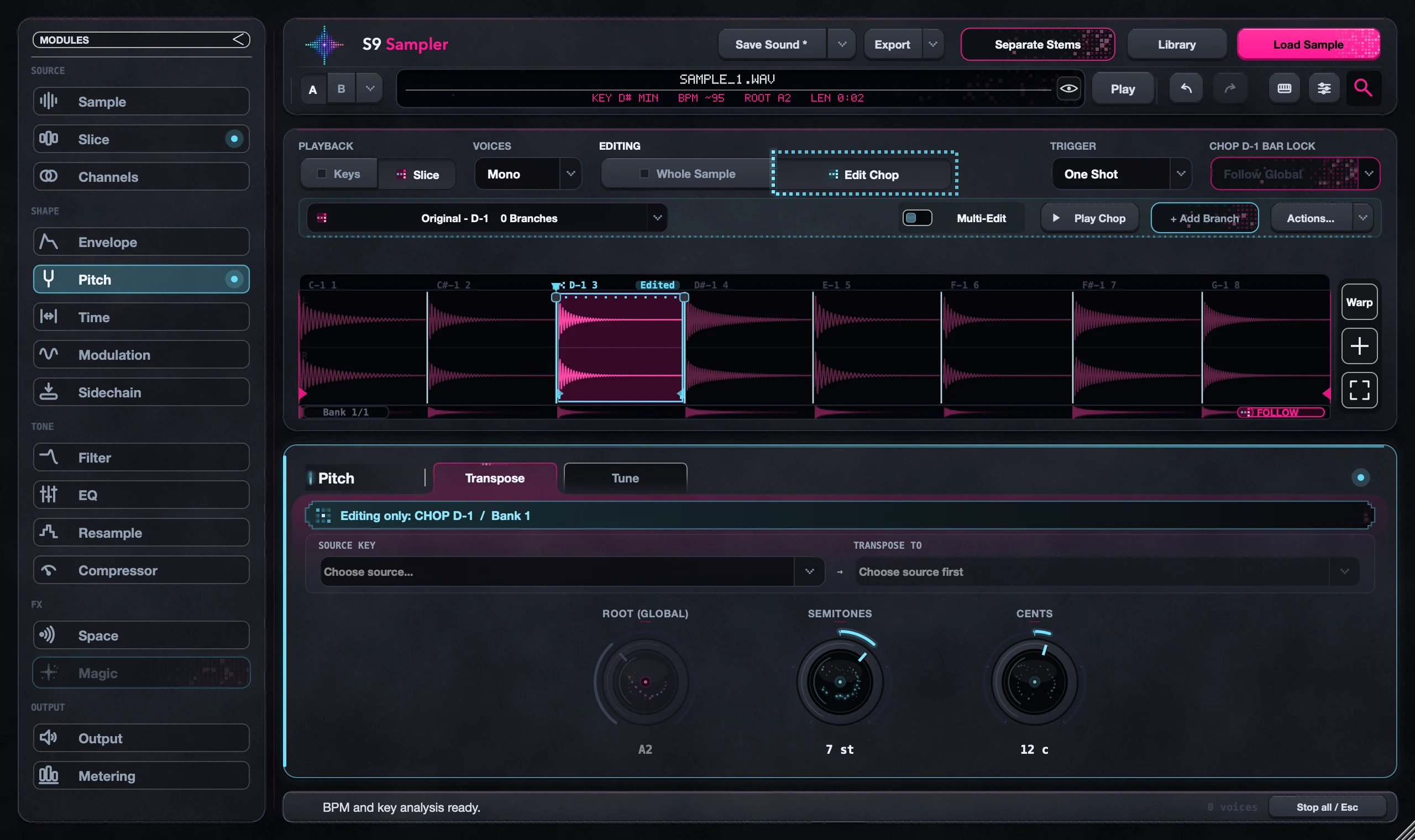
One Shot or Hold to Play: control when a sample stops
One Shot plays the whole sound after a tap. Hold to Play stops it when you let go of the key. Use One Shot for full drum hits from short notes, and Hold to Play when the note length should decide how long a phrase plays. A saved Chop loop needs Hold to Play.
This matters most with short MIDI notes. A phrase can sound cut off even though the audio is all there, or a hit can ring on after the note ends.
For S9 Sampler 0.1.6 (paid beta). More help inside the app: Help & Shortcuts → Keys & Key Map.
Step by step
Pick a clear sound
Choose a short Chop with an obvious start and end.
Tap, then hold
Tap a key and hold a key in One Shot. Then switch to Hold to Play and do the same.
Check your MIDI notes
If Hold to Play cuts a phrase short, make the notes longer or switch to One Shot.
Loops need Hold to Play
For a saved Chop loop, choose Hold to Play and hold the key. It stops when you let go.
Good to know
A tail isn’t a stuck note
Reverb and delay can keep ringing after the sample stops. Switch the effect off to check.
Don’t trim to fix this
Before you cut audio or delete a Chop, check the playback mode and the note length.
7 days, all features, no card, no automatic charge.