Edit several sample Chops together
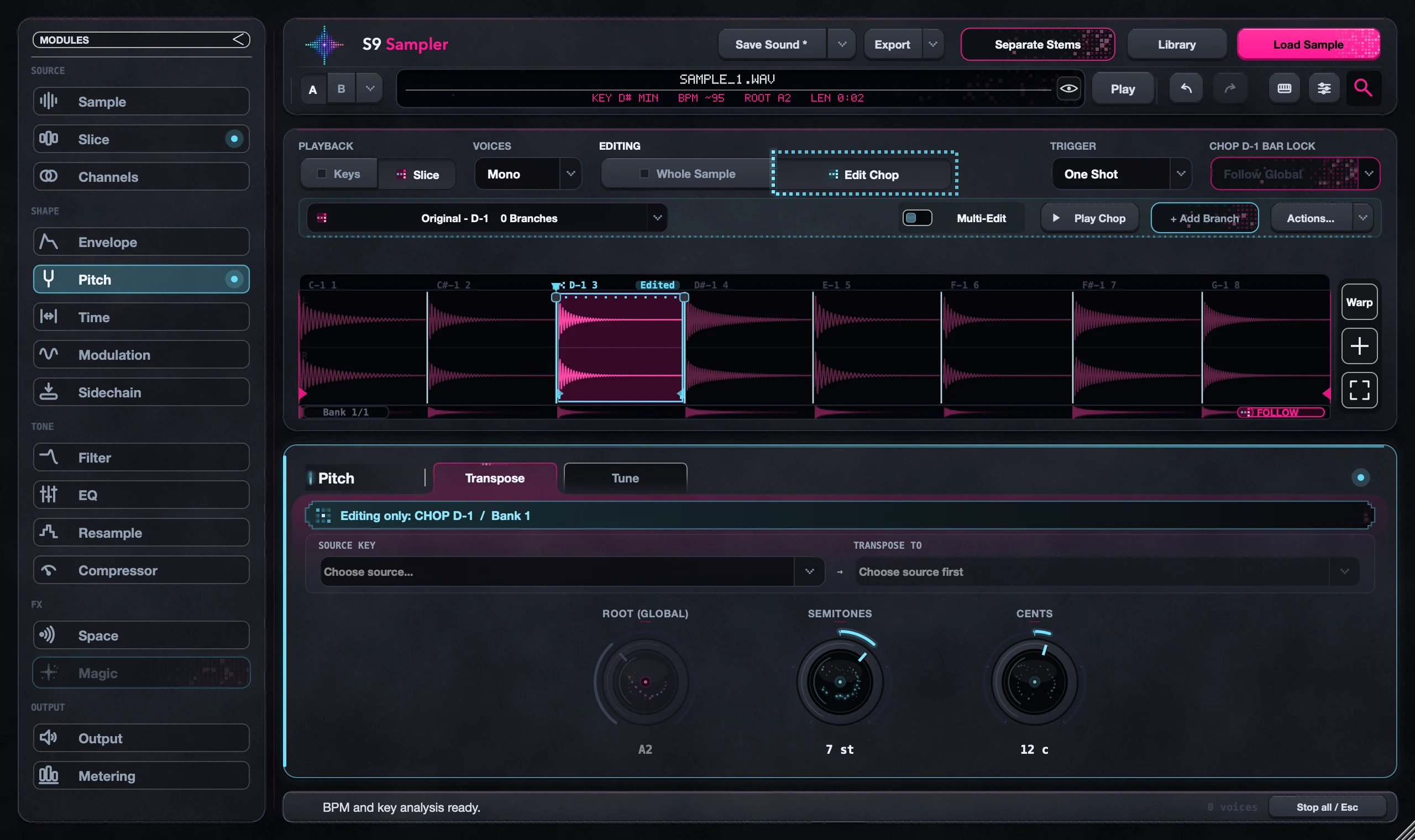
Turn on Multi-Edit, click the Chops you want into a group, then make your change once. Shift-click adds or removes one Chop; drag selects a run and Shift-drag adds another. The group can include Chops that are far apart.
Handy for repeated vocal words or matching drum hits that need the same treatment. Each Chop still keeps its own identity.
For S9 Sampler 0.1.6 (paid beta). More help inside the app: Help & Shortcuts → Chop editing.
Step by step
Build the group
Choose Edit Chop, turn on Multi-Edit and select the Chops you want. Shift-click, drag and Shift-drag build the group.
Check the selection
Zoom out or use the overview to see everything that is selected, especially Chops far apart.
Make the change
Adjust Pitch, Time, Filter or another page. Play a selected Chop and one outside the group to check.
Undo a wrong group
If the wrong Chops were included, press Undo and rebuild the group.
Good to know
Listen to each Chop
The same setting can sound different on a short hit and a long phrase. Check both before you save.
Right-click inside the group
Right-clicking a Chop outside the group can act on just that Chop. Read the menu before you export or separate stems.
7 days, all features, no card, no automatic charge.