Change one sample Chop without changing the others
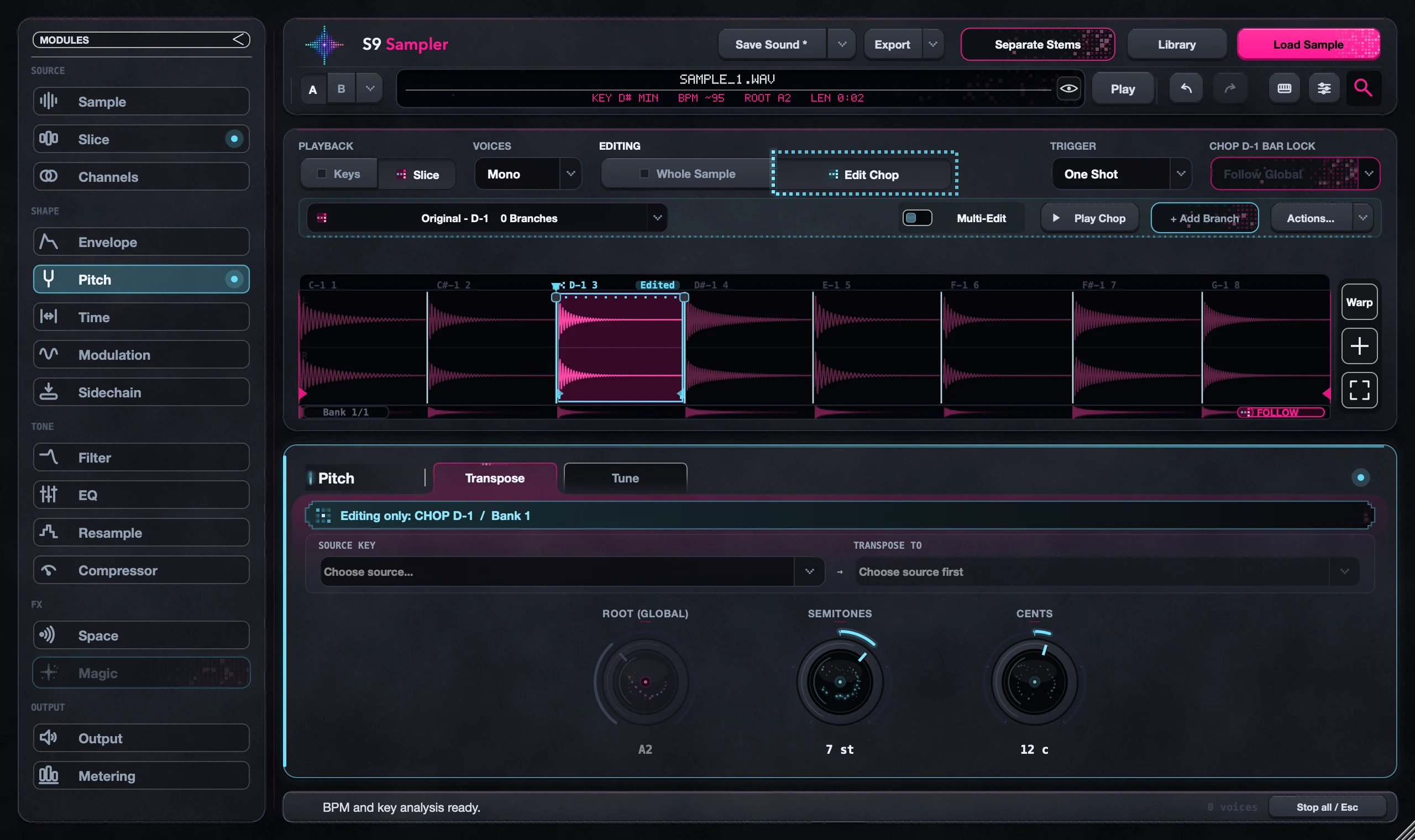
Click a Chop in the waveform, choose Edit Chop, then change Pitch, Time, Filter or another page. Only that Chop changes. Whole Sample is where you change the sound for every Chop at once.
Use it when one vocal word needs tuning, one hit needs a shorter tail or one section needs a different effect, without making extra tracks.
For S9 Sampler 0.1.6 (paid beta). More help inside the app: Help & Shortcuts → Chop editing.
Step by step
Select the Chop
Click it in the waveform and check that it is highlighted. Playing a note doesn’t select it.
Choose Edit Chop
Switch Editing to Edit Chop, open the page you need and make a change. Play a fresh note to hear it.
Check a neighbour
Play another Chop to confirm it didn’t change. Then come back and fine-tune.
Keep or undo the change
The Edited badge shows which effects this Chop changed. Choose Use Whole Sample on one effect to make it follow the shared sound again, or press Undo.
Good to know
Playing doesn’t switch editing
Playing Chops never changes Whole Sample or Edit Chop. Glance at the Editing row before you turn a knob.
Whole Sample keeps your Chop edits
If a Whole Sample change skips this Chop, that is because it has its own setting. Check its Edited badge.
7 days, all features, no card, no automatic charge.