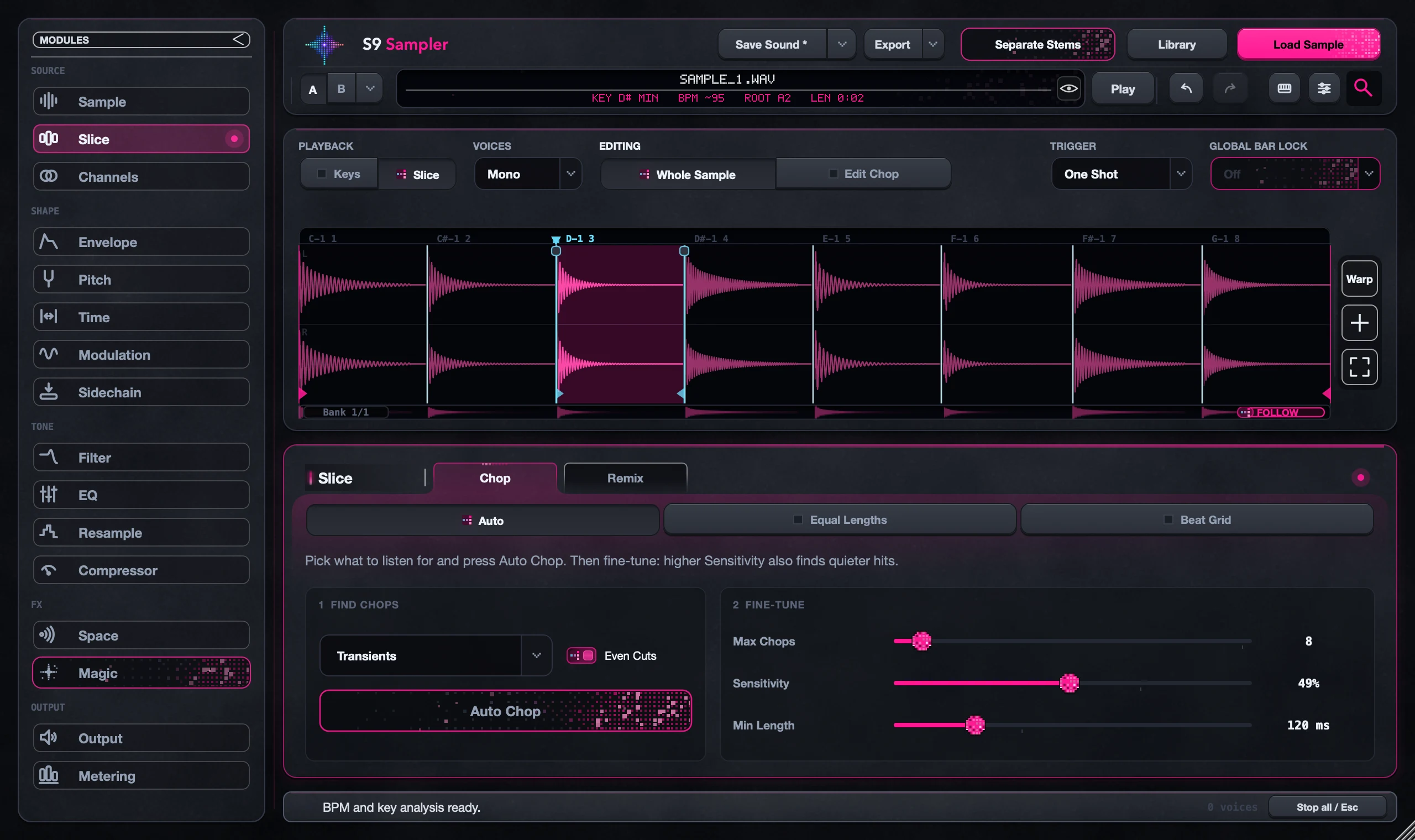
Chop samples by drum hits, vocals or transients
Choose Transients to cut at attacks in the mix, Drum Hits to cut where the drums hit, or Vocal Chops to cut around the vocal. Drum Hits and Vocal Chops use separated guides to find the cuts, but your original audio stays as it is.
Pick the event you want each key to start on. In a full mix the loudest attack is often a kick, not the vocal word you’re after. For the whole chop-and-stretch workflow, see the complete guide.
For S9 Sampler 0.1.6 (paid beta). More help inside the app: Help & Shortcuts → Smart chopping.
Step by step
Choose what to follow
Open Slice > Chop > Auto and choose Transients, Drum Hits or Vocal Chops.
Tune the preview
For drums or vocals, adjust sensitivity and Minimum Length. Move Start to skip an intro, and move, join or add cuts in the preview.
Listen first
Play the Chops with Play Chop, Space or MIDI. Even Cuts keeps Transients and Drum Hits cuts on the beat.
Apply or cancel
Apply adds the cuts as one undoable change. Cancel leaves your current Chops as they were.
Good to know
Want the vocal on its own?
Auto Chop only places cuts. To hear just the drums or vocal, use Separate Stems.
More cuts isn’t always better
A very short Minimum Length leaves tiny pieces that are hard to play. Try a longer length first.
7 days, all features, no card, no automatic charge.