Set up a first bass sound with S9 Lava
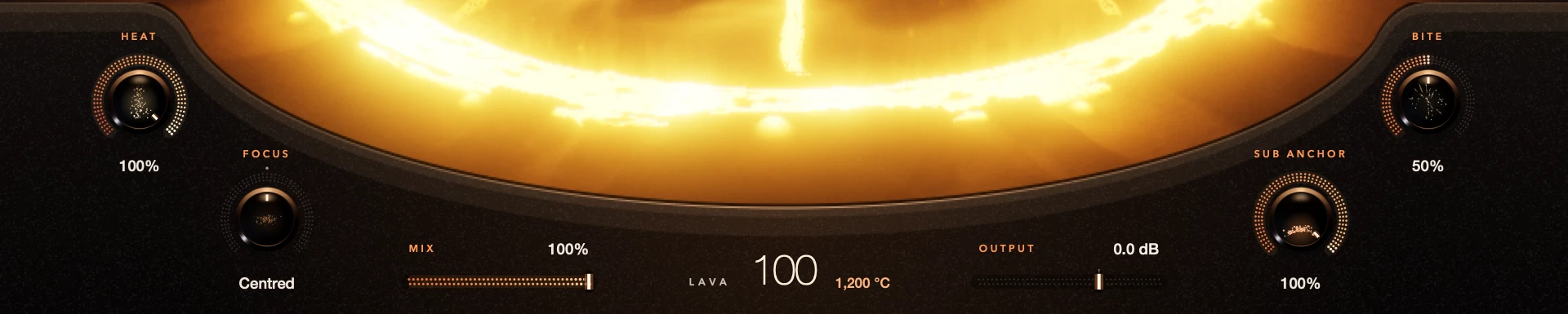
Put S9 Lava on your bass track and play the part. Raise the volcano a little, then try Heat. Check it with the rest of the song and set the level with Output. The volcano sets how much character you add; it isn’t a volume knob.
Use a short bass phrase you know well and change one thing at a time. Match the level when you compare, so louder doesn’t win just for being louder.
For S9 Lava 0.1.3.
Step by step
Put Lava on your bass
Add S9 Lava as an effect on a bass audio track or after a bass instrument. It needs incoming audio; it doesn’t make sound on its own.
Raise the volcano
Start low and turn the volcano up. Then try Heat for a warmer or grittier edge.
Add only what’s missing
Focus moves where the added harmonics sit, Bite adds upper edge and Sub Anchor adds more of the low end. You don’t need all of them.
Set the level
Use Mix and Output, and listen in the song as well as solo. Check your DAW’s meters.
Good to know
Judge it in the song
A bold setting can sound amazing alone and crowd the kick or vocal. Decide with the whole mix playing.
Watch the level with Sub Anchor
Sub Anchor adds real bass, so check Output afterwards. Lava has no output limiter.
Every control included. No account, activation or trial limit.