Make alternate versions of one sample Chop
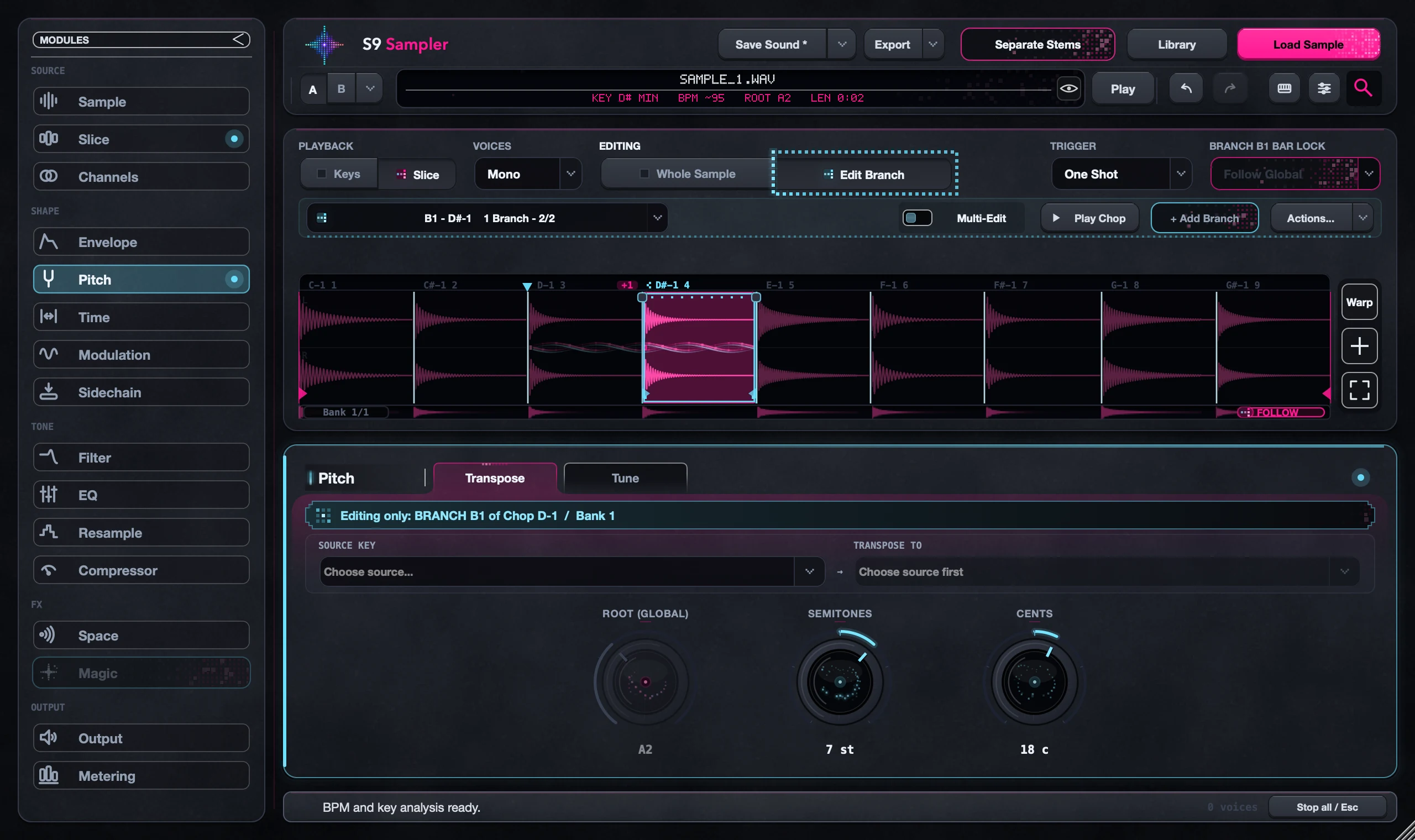
A Branch is another version of the same Chop. It plays the same piece of audio with its own sound settings. Select the Chop, choose Edit Chop and click + Branch to try a pitched, reversed or processed version without losing the Original.
Great when you like a phrase and want a second answer to it. A Branch shares the Original’s cut points, so moving a cut moves it for the whole family.
For S9 Sampler 0.1.6 (paid beta). More help inside the app: Help & Shortcuts → Branches.
Step by step
Pick the Original
Select the Chop, choose Edit Chop and play it once.
Add a Branch
Click + Branch, then change its pitch, effects or timing. It starts from the Chop’s current sound.
Name your versions
Use the family selector to switch between Original and Branches, and give them names in Actions.
Choose how they play
Separate Keys gives each version its own key. Round Robin cycles through them, Velocity Split picks by how hard you play and Random picks one each hit.
Good to know
Compare in the beat
Play the Original and the Branch at the same spot in your pattern. Keep both if they do different jobs.
Branches or A/B?
Branches are versions of one Chop that live inside your sound. A/B compares two complete versions of the whole sampler.
7 days, all features, no card, no automatic charge.