Tune a sampled vocal phrase in S9 Sampler
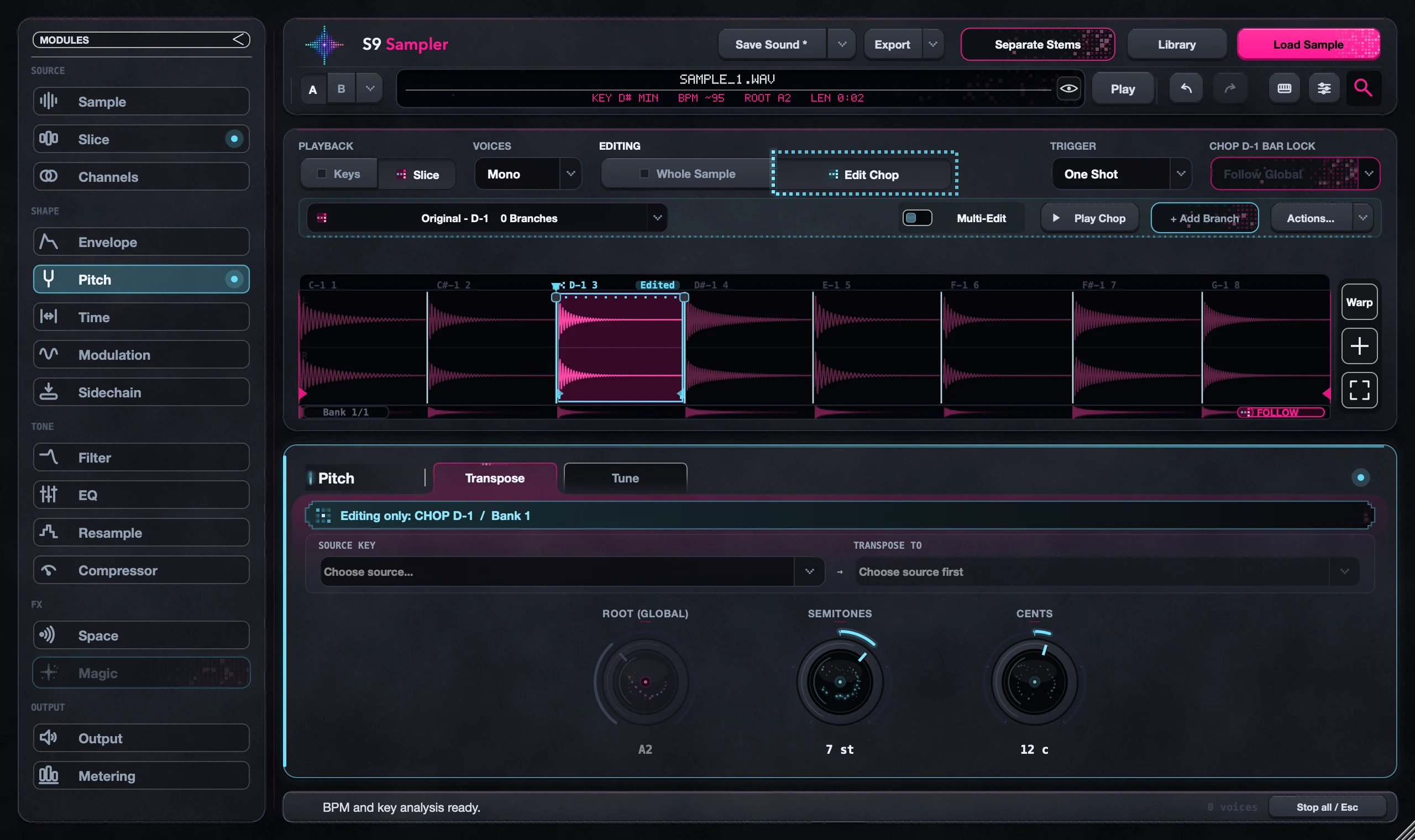
Open Pitch > Tune, set the key and scale, and choose a style. Tune pulls a single-note line, like a vocal or bass, toward the notes of that scale. It can’t correct the notes inside a chord one by one.
Use Pitch to shift the whole phrase by the same amount. Use Tune when the notes inside the phrase need correcting.
For S9 Sampler 0.1.6 (paid beta). More help inside the app: Help & Shortcuts → Pitch & Time.
Step by step
Pick a clean line
Choose a solo vocal, or a vocal you separated with stems. Then choose Whole Sample or Edit Chop.
Set key and scale
In Pitch > Tune, set the key and scale. The detected key is a good start; check it by ear.
Choose a style
Natural keeps expression, Tight corrects more firmly and Hard Tune snaps for the effect. Fine-tune with Amount, Retune Speed and Keep Vibrato; Keep Character keeps the voice’s tone.
Check the whole phrase
Listen to note changes, long vowels and the ending. Compare with Tune off.
Good to know
Harder isn’t more accurate
A natural vocal and a snapped effect are different goals. Pick the one you want first.
Chords stay chords
Tune shifts a chord as one sound; it doesn’t fix each note. Use a single-note line for correction.
7 days, all features, no card, no automatic charge.