Install S9 Sampler on Windows
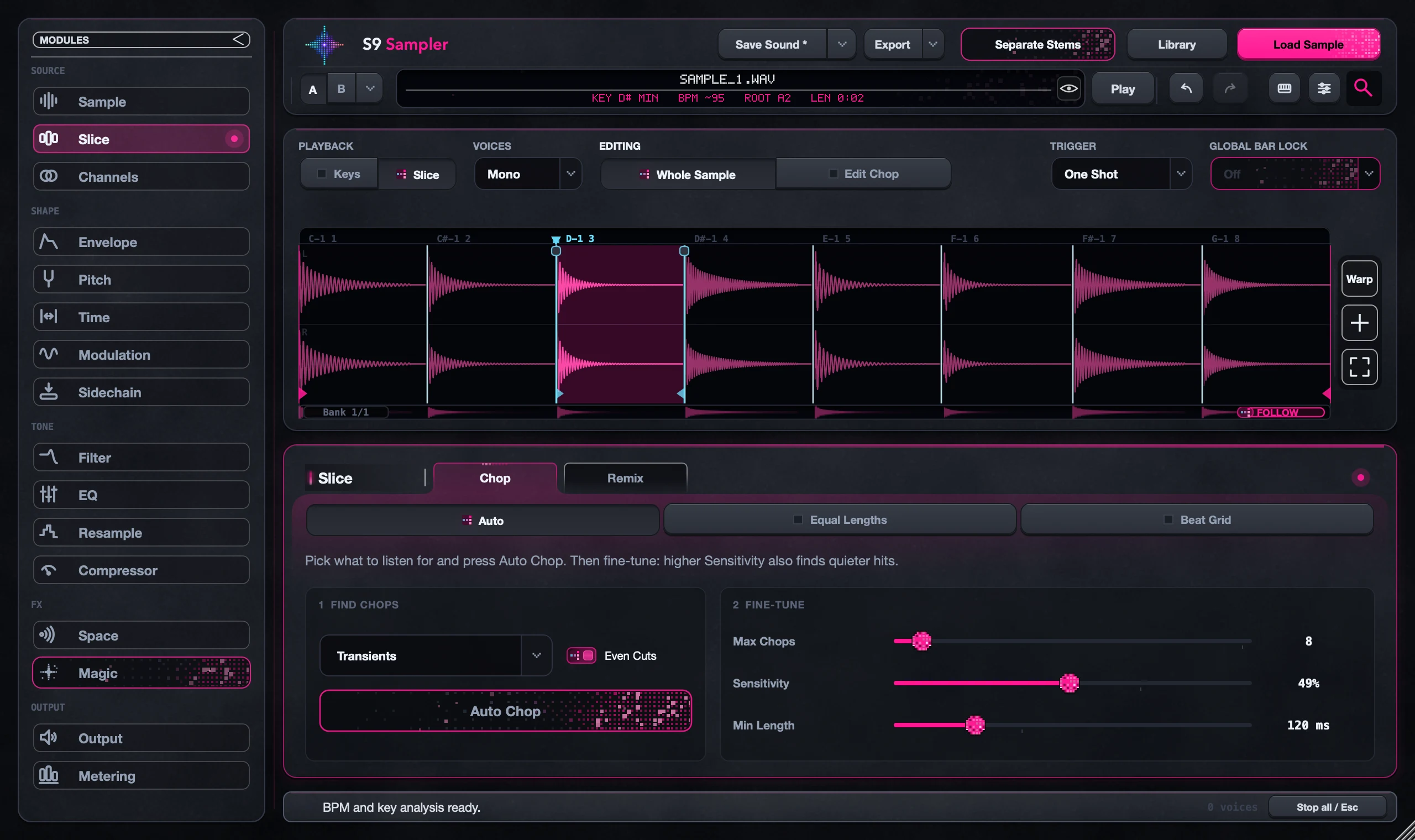
Download the Windows installer from the S9 Sampler page, close your DAW and run it. It installs the VST3 into the standard Common Files VST3 folder. S9 Sampler opens inside your DAW on an instrument track. There is no separate app or shortcut.
The installer is unsigned, so Windows may show an unknown-publisher warning. Only run the file from the official S9 Sampler download.
For S9 Sampler 0.1.6 (paid beta).
Before you install
Windows 10 or later · 64-bit Intel/AMD · VST3
Step by step
Get the Windows file
Download the Windows installer from the S9 Sampler page. It is for 64-bit Intel and AMD PCs; Windows on ARM is not part of this release.
Close your DAW and install
Save your session, close the DAW and click through Welcome, Licence, Install and Done.
Scan and add it
Reopen the DAW, let it scan for VST3 plug-ins and add S9 Sampler to an instrument track.
Start your trial
Choose Activate / Try Free, sign in when asked, then load a short sample and play a note.
Good to know
If Windows blocks the installer
Check that it came from the official download. If a company security policy still blocks it, contact S9 support with the file name and your Windows version. Don’t turn off Windows security to get around it.
Use an instrument track
An audio track with a WAV on it doesn’t send notes to an instrument. Put S9 Sampler on an instrument track so MIDI can reach it.
7 days, all features, no card, no automatic charge.