Add another recording without replacing your sample
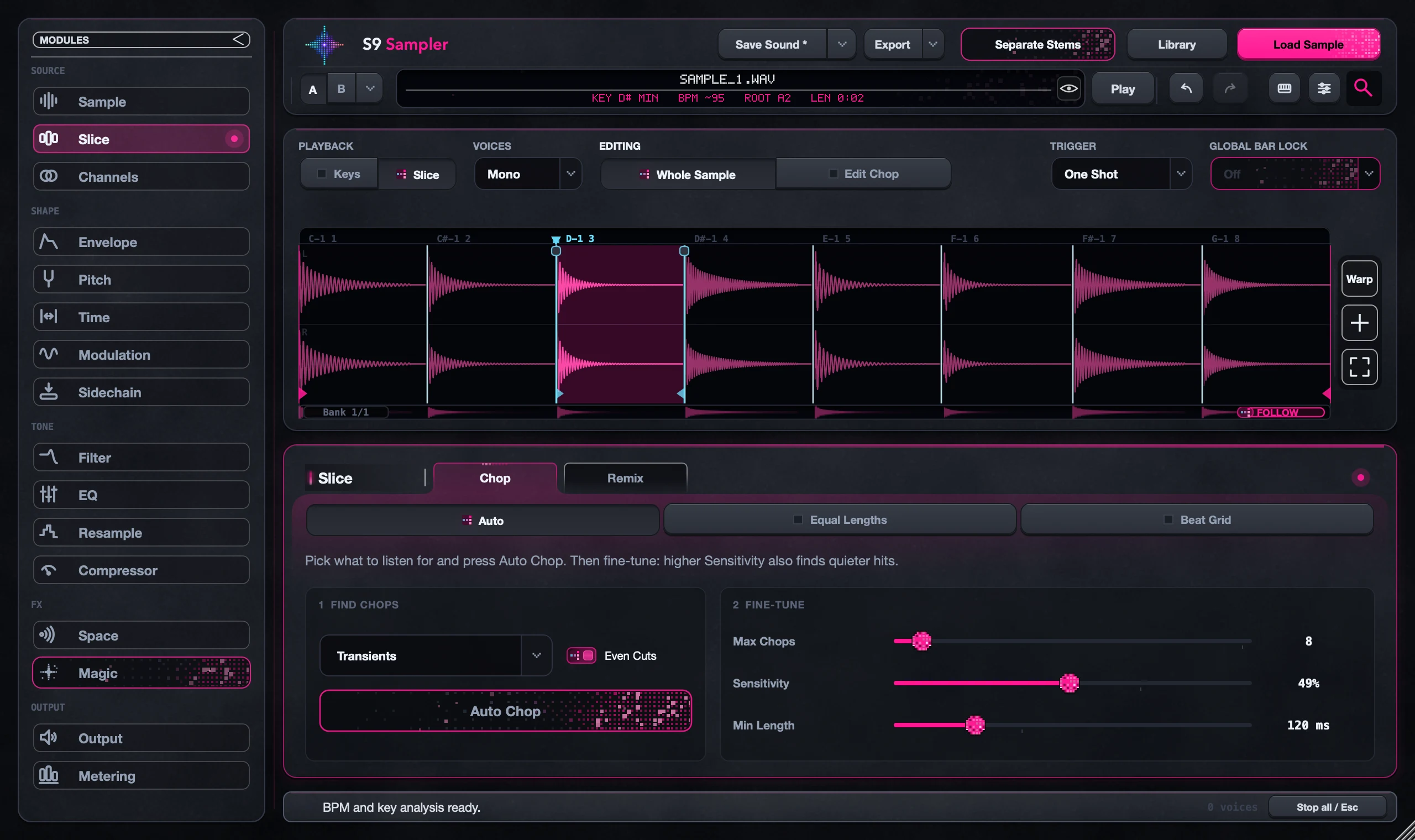
Click Add Audio at the right edge of the waveform and choose another file. It is added to the end of your sample instead of replacing it, and your Chops, Branches and edits stay as they are.
Useful when a second phrase or take belongs next to the one you’ve already chopped. Layering stems is different: that plays parts at the same time.
For S9 Sampler 0.1.6 (paid beta). More help inside the app: Help & Shortcuts → Start here.
Step by step
Open your sample
Load the sound you want to extend. Save it first if you’d like a copy of this version.
Click Add Audio
Use Add Audio at the waveform’s right edge and choose the next recording.
Trim the new part
Use Trim & Add to keep only what you need, then choose Save & Add.
Check the new Chops
The new audio is chopped with your current Auto Chop settings. Play across the join and use the bank buttons if it reaches more keys.
Good to know
Your old edits stay
Play an earlier Chop and one of its Branches to confirm, then adjust the new cuts if needed.
Add or layer?
Add Audio makes the sample longer. To play stems together, use Layer Together.
7 days, all features, no card, no automatic charge.